
B.5 Children
Here, parents can manage their children's data as Homework Buddy students, which they may have submitted during the onboarding stage. They can also add new entries, as well as edit or delete existing ones.
Index page
The landing page (index) displays a list of their registered children, each with the following options:
- View: Opens the View Details page.
- Edit: Opens the Edit page (which also includes the deletion option).
There is also a + Child data where parent can click on them to add a new student.
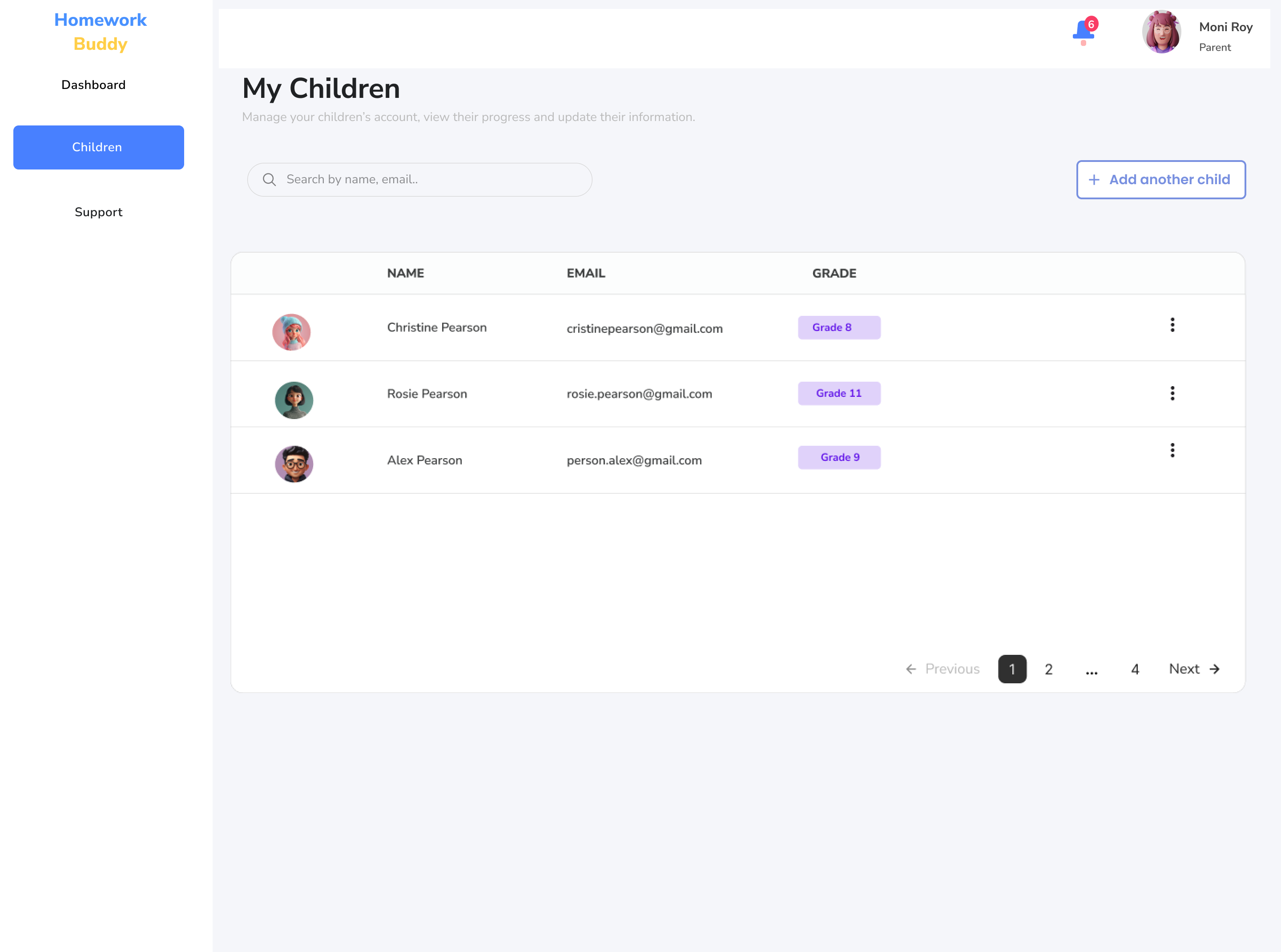
Image B.5.1 Children Index Page
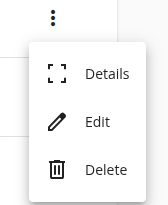
Image B.5.2 View Buttons
If we click the triple dots icon here, we can select the options (details, edit or delete children)
Create New Child
Use this form to add a new child account. Provide basic information such as first name, last name, email/username (used for login), and password. Additional details like gender, grade, and age help personalize the experience for the child.
The “Allow child to modify their profile” setting controls whether the child can edit their own profile after account creation. If disabled, the child’s profile will be read-only and can only be updated by a parent or admin.
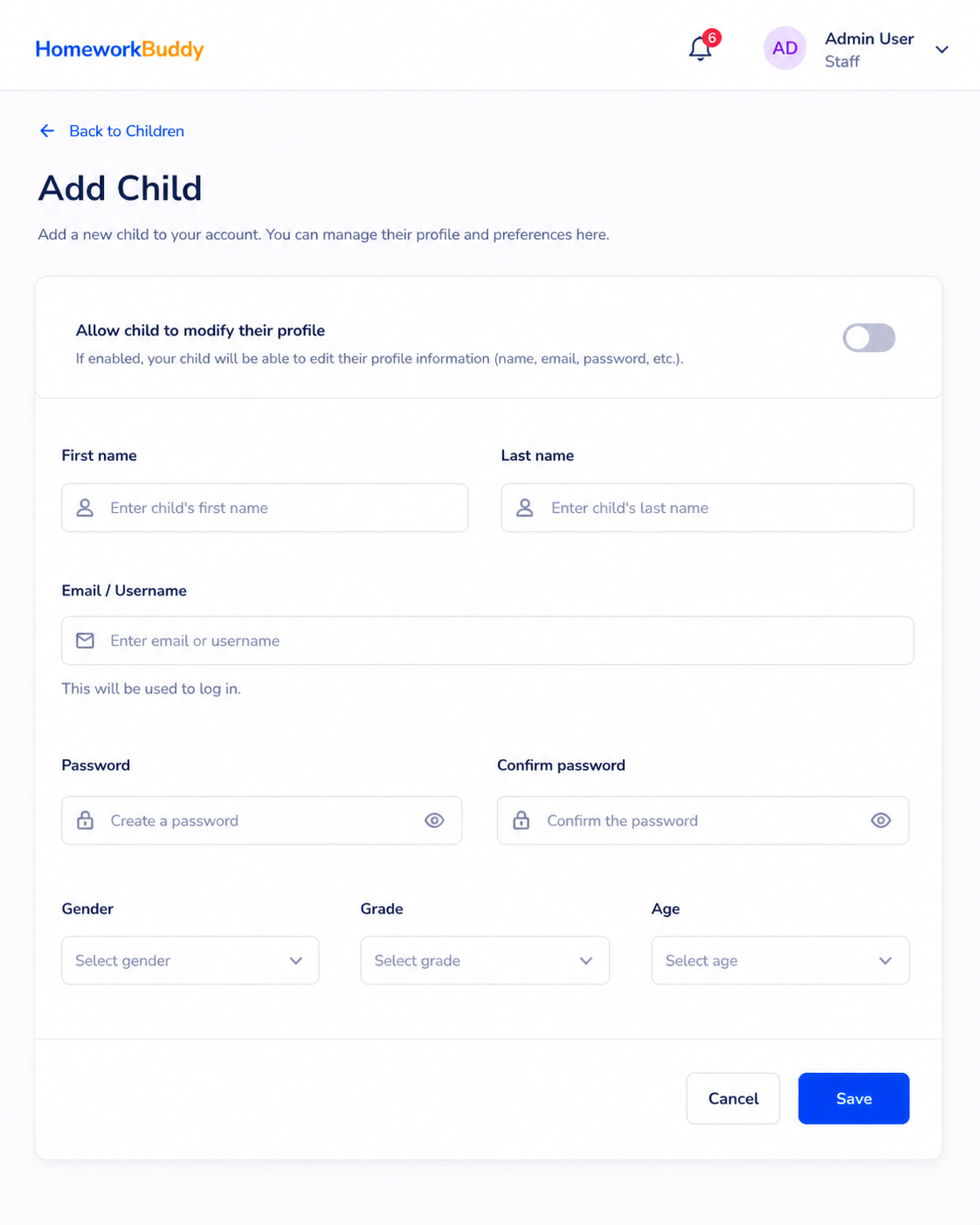
Image B.5.3 Add New Child Page
View details page
Parents can view the details and statistics of a selected child's data here. The primary goal is to allow parents to track their children's progress and reports. The statistics section provides access to the following:
- Allow the child to modify their profile: This setting controls whether the child can edit their profile information. When disabled, the profile becomes read-only for the child, the onboarding profile step can be skipped, and all changes must be managed by a parent. (view only on this page)
- All assignments: An aggregated view of all assignments from the home board and project board(s). Parents can search, sort, and view the details of each assignment. They can also filter by status (Heute, Bald, Langfristig, etc.).
- The child's home board: Displays the current state of the board.
- The child's project boards: Lists and shows the details of each project board.
- Check-in stats: a breakdown of the child's emotional check-ins — such as happy, optimistic, stressed, angry, down, or sad — with filter options (This Week, This Month, This Year)
- Earned rewards.
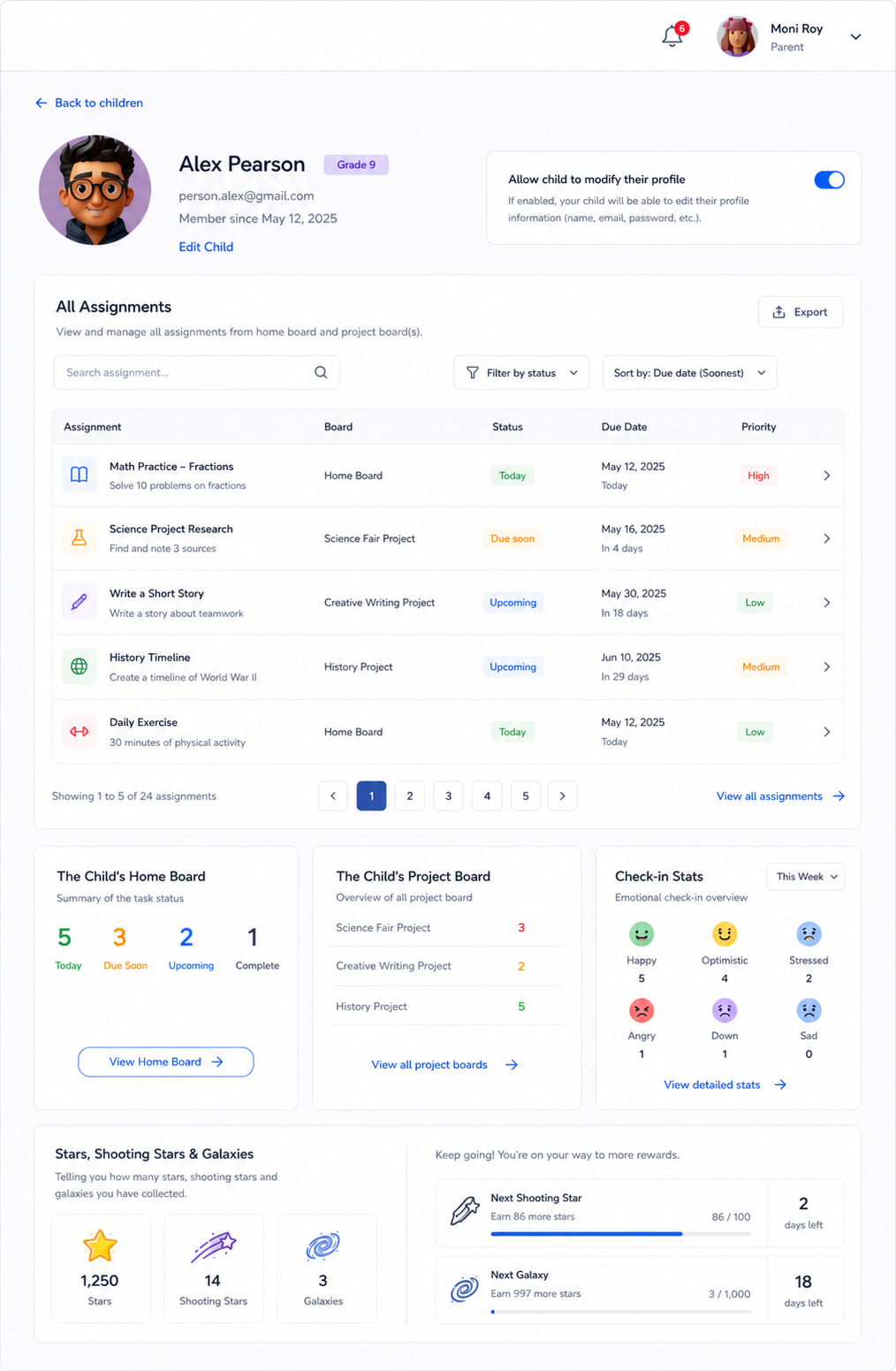
Image B.5.34 Children Detail Page
Edit page
Parents will see a form containing the selected child's details, where they can modify the data. They can also delete the child's record from this page. WARNING: Deletion will permanently remove all of the child's data, including their boards, assignments, achievements, and more.
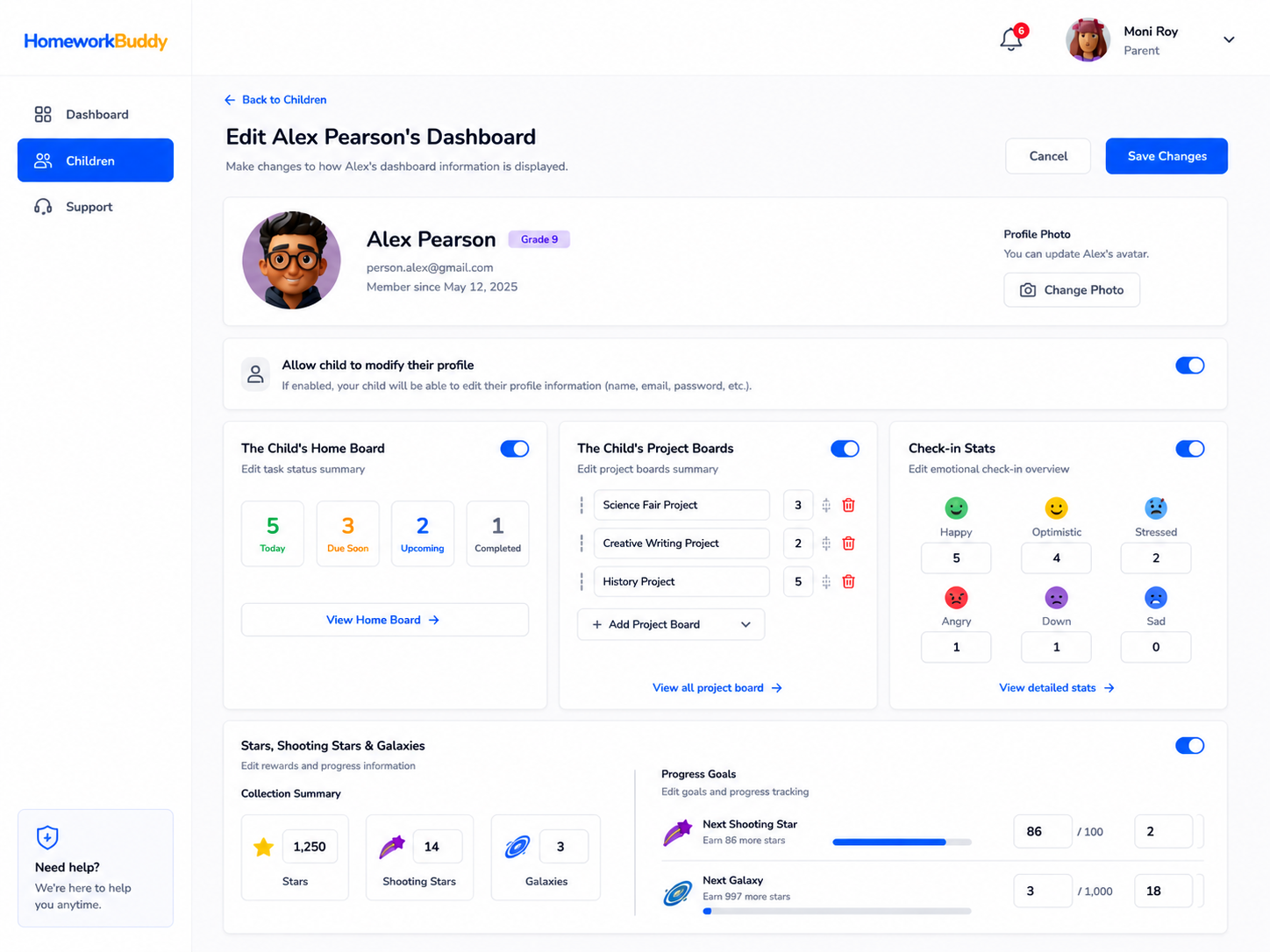
Image B.5.45 Edit Children Page